Search Address
Overview
OsmAnd Search by Address is based on OpenStreetMap data and allows you to find location and directions to a specific address from a ready sorted list, as well as search by postal code or coordinates. This tool allows you to find the required addresses in a few taps, which reduces the search time and helps in case you don't remember the exact address.
Address search works offline using downloaded maps. Make sure the map for the region you are searching in is installed. Results depend on the address data available in OpenStreetMap.
Search results are automatically ordered by relevance and distance, so nearby and more relevant results appear higher in the list.
OsmAnd provides several ways to get to the Search tool where the Search Address section is located.
- The Search button is always displayed on the map, and tapping it will take you to the tool's general screen, where you can find the Address tab.
- Go to the main Android Menu → Search → Address tab.
- When preparing to start a route, tap Navigation → Set destination → Search field.
Full Text Search
- Android
- iOS
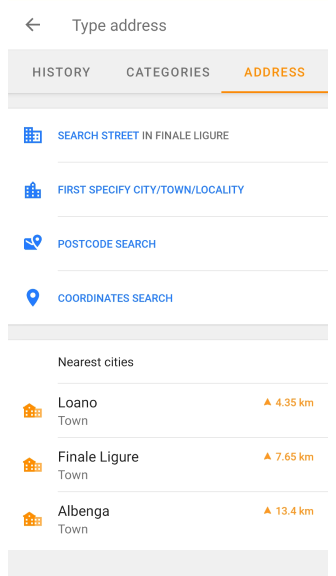
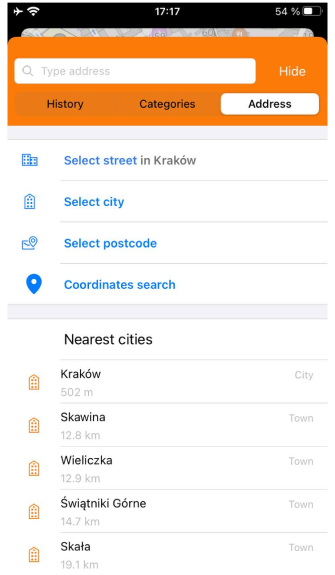
OsmAnd supports full-text address search. This means you can type an address directly in the search field instead of selecting city → street → house number step by step. The search engine tries to recognise address components such as:
- city;
- street;
- house number;
- postcode;
- place name.
You do not need to enter them in a strict order. Example queries:
221B Baker Street London
Baker Street 221B
London Baker Street 221B
101 Main Street
Main Street 101
If the full address is not found, OsmAnd automatically tries simplified queries (for example by removing extra words) to improve the chances of finding the location.
When a query may refer to both an address and a POI, OsmAnd automatically prioritizes the most relevant interpretation based on context, distance, and object importance.
NOTE: Address search works only within downloaded maps. Search results are based on:
- maps installed on your device;
- the visible map area;
- your current location.
If nothing is found, OsmAnd may suggest increasing the search radius.
US Address Search and TIGER Data
OsmAnd supports address searches using OpenStreetMap data, but in the United States, address search results may be incomplete due to the use of TIGER data.
- TIGER data provides address ranges, not exact locations, this means that some house numbers may not be recognized.
- If an address is not found, try searching by street name instead of a specific house number.
- Use alternative location identifiers, such as nearby landmarks or ZIP codes, to refine your search results.
Supported Formats
OsmAnd supports several common address formats. You can enter addresses in different orders depending on how you know the address.
| Address format | Example queries |
|---|---|
| House number + street | 221B Baker Street 10 Downing Street |
| Street + house number | Baker Street 221B Main Street 101 |
| City + street + house number | London Baker Street 221B Paris Rue de Rivoli 10 |
| Street intersections | Broadway & Wall Street Main Street and High Street |
| City name | Berlin Vienna San Francisco |
| Postal code + address | 10001 New York 75001 Paris Rue de Rivoli 10 |
Search Tips
Address search in OsmAnd is tolerant to different input formats. You can try:
- changing the order of words;
- removing extra information;
- searching only by street name.
However, very short or general queries (for example, “Apple”) may return a mix of addresses and POIs, including a brand, street name, or locality with the same name. To improve accuracy, try adding more details such as city name, street, or POI name.
The search engine also tolerates common variations in address formatting such as different word order, spelling differences, abbreviations, or house number formats. The table below shows typical search variations that may still return the same address.
| Search variation | Example queries | Related discussion |
|---|---|---|
| Street name variations | Weberstraße Weberstrasse Weber-straße Weber-strasse | Discussion |
| Ignoring spaces in names | Goethe Straße Goethestraße | Discussion |
| House numbers with letter suffixes | 30B Dragonder, Valkenswaard 30b Dragonder, Valkenswaard 30-B Dragonder, Valkenswaard 30-b Dragonder, Valkenswaard | Discussion |
| Street abbreviations | Straelener Straße Straelener Str. | Discussion |
| Full address vs simplified address | 221B Baker Street London United Kingdom 221B Baker Street Baker Street 221B | Discussion |
| US address format | 1500 North Main Avenue, Springfield 4600 Sugar Maple Lane, Nashville | Discussion |
| US state abbreviations | Springfield, VA 22150 Manhattan Beach, CA 90266 | Discussion |
Select City
- Android
- iOS
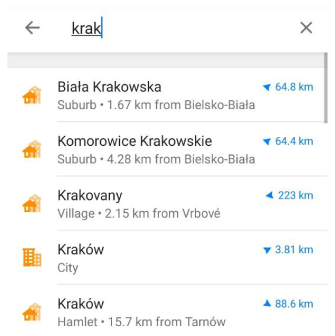
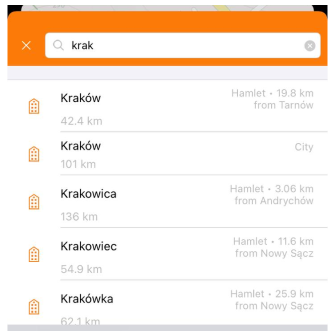
Nearest cities
This displays a small list of cities around your location or the locality you specified for Select street or Select city. Each field contains an icon corresponding to the size of the city, the name of the city, the distance from you to its center, and for Android the compass direction.
This way of searching makes it easy to find specific locations within a selected locality, providing a convenient way to find addresses accurately and quickly. You can start searching for the needed address by determining the locality.
- To do this, tap First specify city/town/locality (Android) or Select city (iOS).
- In the list that opens, select the required locality. Here describes the order in which search queries are displayed and what information is available about each item.
- On the next screen, you can either continue to refine the address or select the Show on the map button below the search entry field.
- To specify your search, you can enter all or only part of the name of the city, town, or village where the address you are looking for is located. This allows you to narrow your search and get a more accurate list.
- Tapping the last item in the address, house number, or intersection name, opens the map context menu of the object.
City / Town / Village search by addr:city/hamlet/town/village/suburb=
Result: displaying all objects with this name.
Select Street
- Android
- iOS
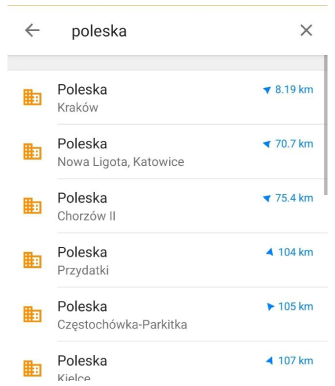
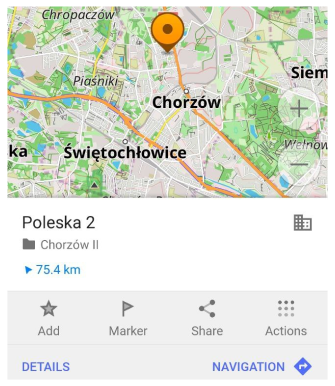
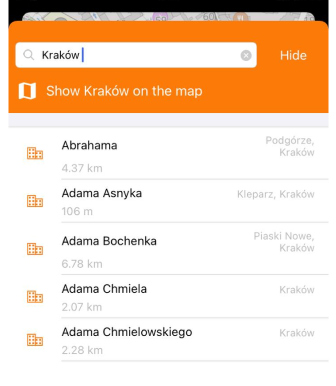
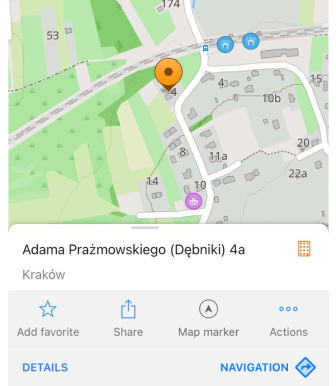
Street search is performed in the locality where you are, or where you searched before, or which is in the center of the visible map on the application screen.
- To use this type of search, tap Search Street (Android) or Select Street (iOS).
- In the search field next to the city name, you can start typing the street name and the list will refine, giving you the most appropriate results.
- In other items, the street search is the same as in Select City.
Search streets by addr:street=
Result: all streets with this name are shown.
Postcode Search
- Android
- iOS
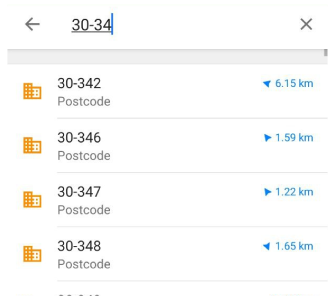
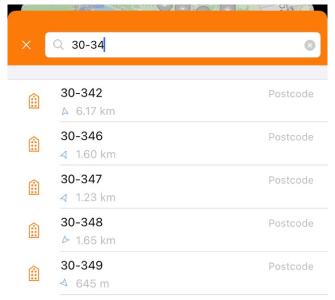
To use the Postcode search, you just need to enter the number, which can consist even of a single digit, and the application offers a list of available relevant postcodes.
- Select the required code and tap it.
- You can use the Show postcode number on the map feature. This opens a map context menu with the selected postcode without any additional information about the location.
- You can refine your search by this code by first selecting the required street from the list and then the number.
Searching by postcode can be useful when:
- The street name exists in several cities.
- You know the postcode but not the exact address.
For more information, read the United Kingdom Postcode data.
Coordinates Search
- Android
- iOS
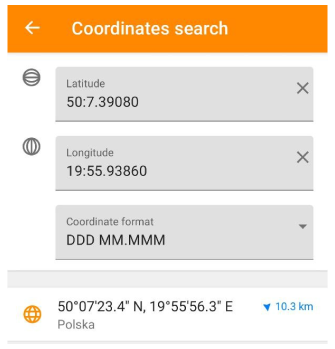
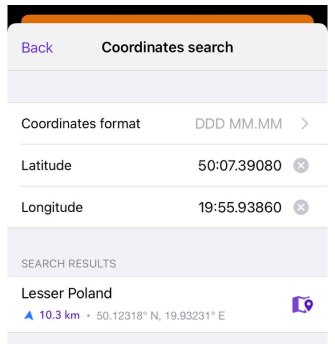
Coordinate Search allows you to specify geographic coordinates, such as latitude and longitude, to find a specific location. It provides accurate locations on a map in different coordinate formats and allows you to get related information. This feature can be useful when you do not have an address or exact name of a location, and can make it easier to plan travel and navigate in unknown places.