Search All
Overview
Search is a useful tool for quickly finding locations. You can use Search to find a location by address, coordinates, points of interest (POI), or previous searches. Search Address allows you to enter the address you want to get an exact location. Coordinates search works with geographic coordinates such as latitude and longitude. With POI search you can search for nearby places in specific categories, such as cafés, hotels, or filling stations. The Explore tab highlights popular places nearby and provides quick access to recently visited locations. The search feature makes it easy to plan trips, navigate unknown terrain, and find POIs nearby.
How to Use
- Android
- iOS
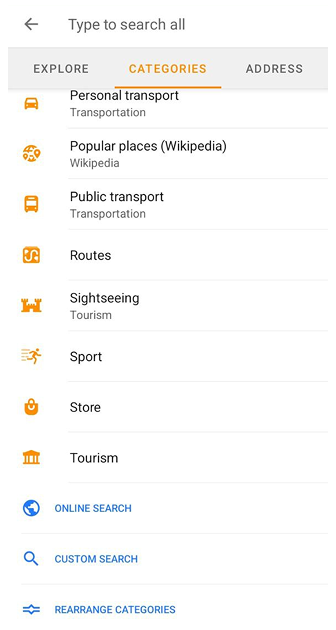
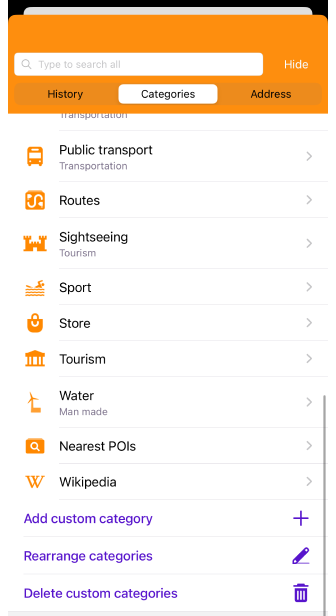
You need to follow one of the steps to start your search:
-
Tap the Search button on the map application screen and enter your query.
-
Go to the main Menu → Search → enter your search query.
-
When preparing to start a route, tap Navigation → Set destination → Search field → search query.
Important information:
-
Downloaded offline vector maps are required to search with OsmAnd.
-
Initially, the search is based on the data located on the map in the visible area of the device screen, but if nothing is found there, OsmAnd offers to increase the search radius.
Basic Queries
Query list:
- Coordinates all available formats.
- Address:
- Street, House Number;
- City, Street;
- Street Intersections;
- City;
- Tiger data;
- Postal Code, House Number;
- Postal Code, Street, House Number.
- Search POI by name and by category with additional filters.
- Search OSM routes by name and by category with additional filters.
- Search by most prominent peaks and volcanoes.
- Search by Travel guide articles (requires the corresponding Travel guides file to be downloaded).
- Search by Favorites and Waypoints.
- Search icons by POI subcategory names.
- Search by tracks.
- Search by business venues and brand names.
- Online search (Nominatim).
- URL search (Google and OsmAnd). OsmAnd can recognize many shared Google Maps links, including short links from
maps.app.goo.gl. - Search History.
Sorting Search Results
- Android
- iOS
OsmAnd automatically sorts search results by several criteria:
-
Matching queries — Results containing exact or partial matches to the words you entered are displayed higher.
-
Relevance — Objects whose names closely match the search query are usually shown higher in the results.
-
Object type — Depending on the query, results may include different types of objects such as cities, streets, addresses, or POIs.
-
Distance — When results have similar matching criteria and object types, the results closest to the user's current location are shown first.
-
Importance — Well-known landmarks or frequently referenced places may appear higher in the results when they closely match the search query.
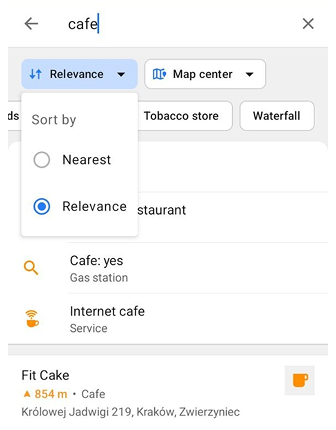
You can also manually change the sorting order of search results using the sorting chip at the top of the search results list. The chip shows the selected option. Tap it and choose one of the following in the Sort by menu:
- Relevance — Sorts the search results by relevance to the search query.
- Nearest — Sorts the search results by distance, with the closest results shown first.
OsmAnd automatically sorts search results by several criteria:
-
Matching queries — Results containing exact or partial matches to the words you entered are displayed higher.
-
Relevance — Objects whose names closely match the search query are usually shown higher in the results.
-
Object type — Depending on the query, results may include different types of objects such as cities, streets, addresses, or POIs.
-
Distance — When results have similar matching criteria and object types, the results closest to the user's current location are shown first.
-
Importance — Well-known landmarks or frequently referenced places may appear higher in the results when they closely match the search query.
For example, a search query post office will show the nearest post offices first, even if there are other items with similar names at a greater distance.
Current limitations:
- There is no manual setting to change the sorting order of search results.
- The sorting process is automatically managed by OsmAnd, based on the criteria listed above.
- In cases where search results are too broad, OsmAnd can limit the displayed results to those with the highest word match accuracy.
Full Text Search
- Android
- iOS
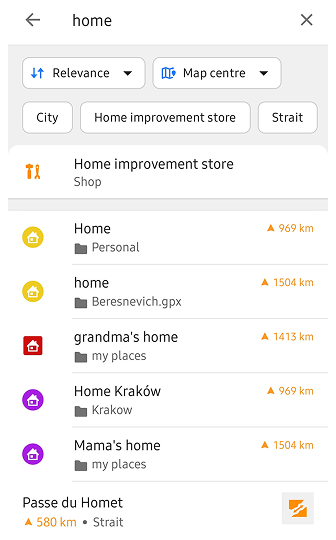
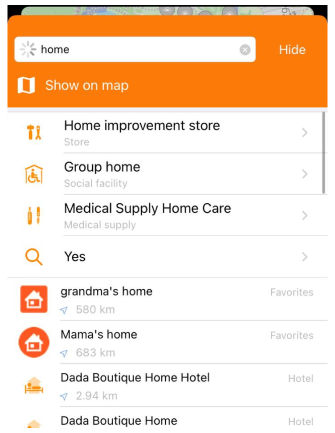
You can find the required location on the map from the list of points that appear as you enter a query.
-
Start typing the name or address in the search bar.
-
As you type, the list displays the results that match your query. The results are sorted as described in the Sorting Search Results section.
-
When searching by name on Android, OsmAnd displays POI type chips based on the types represented in the search results. Tap a chip to filter the results by the selected POI type. You can select multiple POI types. Once selected, a chip moves to the first position in the list. Tap a selected chip again to deselect it and return to the full search results.
-
If you enter a brand name, the list will start with results by this name, sorted by closest distance.
-
The search results may also include a Travel guide article. Tapping it opens the article directly, rather than showing a location on the map.
OsmAnd has integrated TIGER data into the US maps to provide information about US addresses. TIGER dataset is range-based and does not contain precise house numbers, so some addresses may be missing or inaccurate.
Spatial Search
This feature is currently not available for the iOS version of the OsmAnd app.
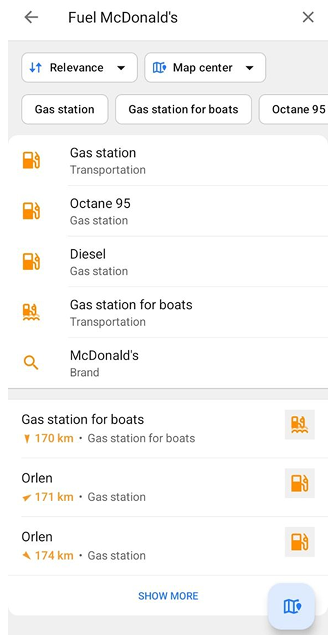
Spatial Search is an experimental search engine that takes into account where objects are located relative to each other, not only how their names match your query. It helps OsmAnd correctly interpret queries that combine several parts, such as a place name and a POI category.
Spatial Search is disabled by default. To enable it, go to the OsmAnd Development plugin settings and turn on Use spatial text search. When enabled, Spatial Search replaces the standard search engine for POI and address queries.
With Spatial Search, you can:
- Search for a POI in a specific place. Enter a category and a place name in one query, for example, Hotel Berlin. The place name is used as the search area, and the category is searched within it.
- Search for places that match two conditions. Enter two categories or a category and a property, for example, Fuel Diesel or Cafe Vegan, to find places that match both. A query such as Fuel McDonald's finds fuel stations located near a McDonald's. The order of words matters. The first word sets what you are looking for, and the second sets what it should be near. For example, McDonald’s Fuel finds McDonald’s restaurants located near fuel stations.
- Search around a found place. Enter a category and a place name, for example, Hotel Berlin, then tap Hotel near Berlin at the top of the search results. The name of this place is added to the Search around chip.
- Use different formats of street names and translated category names in your queries.
- Get faster results when searching by popular POI categories, such as pharmacy, parking, or restaurant.
Search Around
This feature is currently not available for the iOS version of the OsmAnd app.
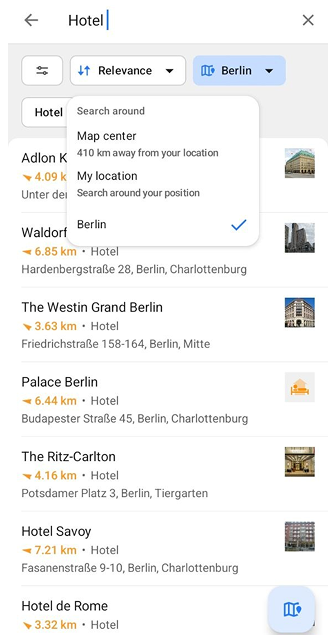
When the map center is more than 50 m from your location and the map does not follow your position, the search runs around the map center, and the search field shows Search N km away. When the map center is more than 70 km from your location, a chip with the search area appears next to the sorting chip. The chip shows the selected option. Tap it and choose one of the following in the Search around menu:
- Map center — Searches around the current center of the map. This option is selected by default.
- My location — Searches around your current location.
- Place name — Searches around a place you found with Spatial Search. For example, enter Hotel Berlin, then tap Hotel near Berlin at the top of the search results. Berlin appears on the chip, and hotels around Berlin are shown. This option is available only when Spatial Search is enabled.
Search on the Map
- Android
- iOS
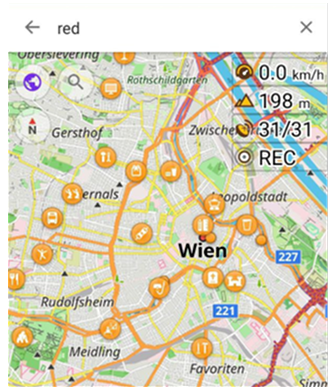
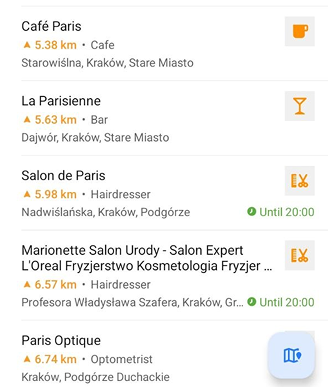
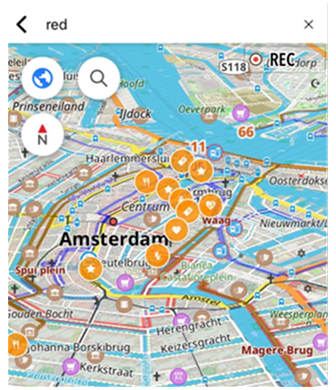
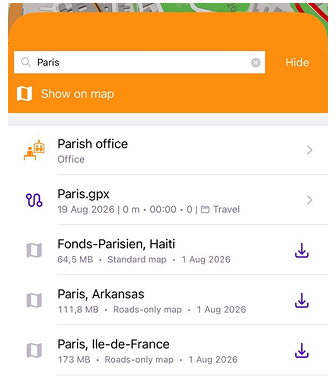
OsmAnd allows you to search for points displayed on a map on your device's screen. To do this:
- Use one of the ways to get to the Search tool.
- Start typing the name or address into the search box.
- A box with the Show on map button will appear below the search input field. On Android, the Show on map Floating Action Button (FAB) appears at the bottom of the search results screen.
- Tap this button to go to the map.
- You can continue typing your query at the top of the screen.
Search Nearby
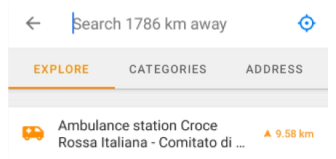
You can use the search in the vicinity of a specific location. To do this, select the required point from the list in the search menu or select it directly on the map. In the map context menu, select Actions → Search nearby.
Search Address
- Android
- iOS
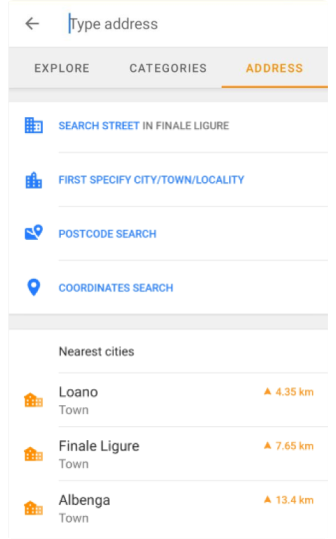
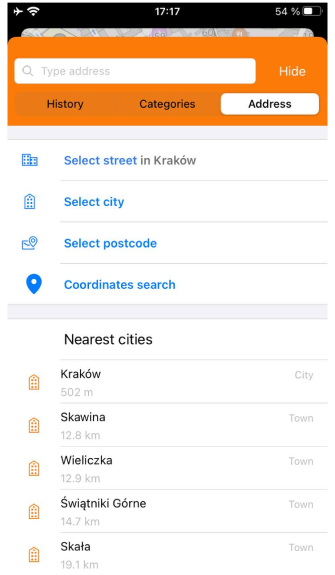
Search Address uses OpenStreetMap data. This type of search allows you to find the location and direction to a specific address from a ready-sorted list. Read more in the Search Address article.
Search Explore
- Android
- iOS
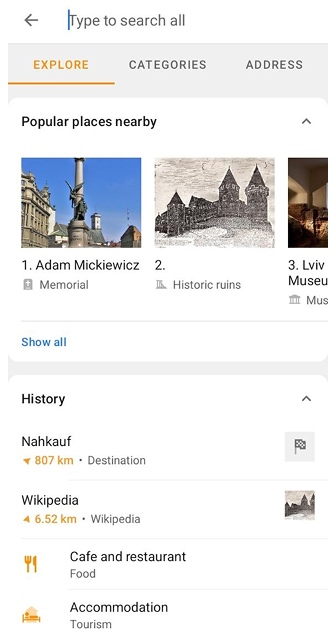
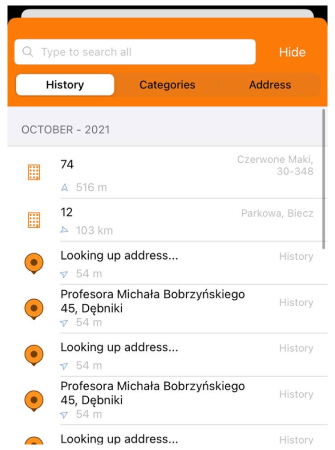
On Android, the Explore tab in the Search tool helps you quickly discover places near your current location and access your history. On iOS, the History tab allows you to search again for previously found places, addresses, or frequently visited places without entering the query again. For more information, see the Search Explore article.
Search POI
- Android
- iOS
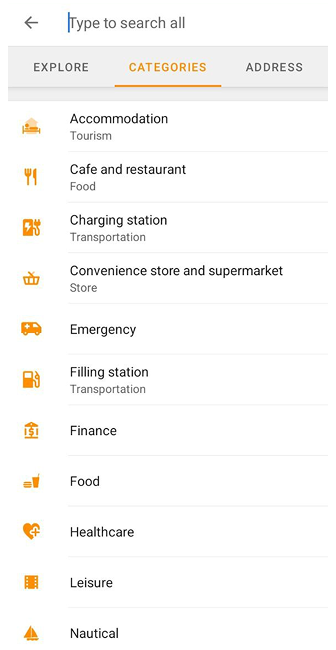
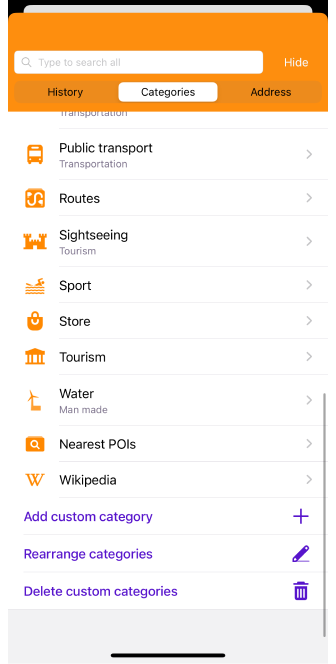
The Search POI is a list, sorted by category, with which you can easily find places and services near your current location or a selected area on the map.
-
Custom POI search allows you to combine different POI categories to simplify and personalize your search.
For example, if you need to find several types of services in a certain area or on a certain section of a route. -
OsmAnd provides an Online search that works in real-time, giving you quick access to search results.
It is convenient to use when maps of the region are unavailable, but a constant and stable Internet connection is required. -
Read the Search POI article for more information.
Search Coordinates
- Android
- iOS
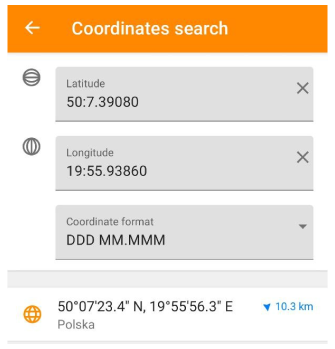
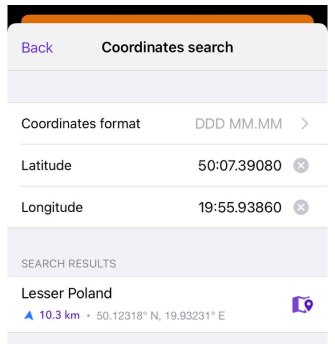
Coordinate search provides an accurate location. You can enter precise coordinates obtained, for example, from other sources such as a map, GPS device, or online services, which is particularly useful when it comes to places that do not have an exact address. For more information, see the Search Coordinates article.