Introduction to Web Planner
Overview
The Web Planner, also known as the OsmAnd Map Portal, is a browser-based extension of the OsmAnd mobile app. It allows users to view global maps, plan routes, simulate navigation, manage personal data, and access synced content from their devices via the cloud.
Designed as a cross-platform companion to OsmAnd for Android and iOS, the Web Portal helps users plan trips, analyze tracks, view terrain, and manage files using any desktop or tablet browser — without installing an app.
OsmAnd Web integrates tightly with the OsmAnd Cloud service, which enables syncing favorites, tracks, and backups across devices and platforms. Users with OsmAnd Start (free) or OsmAnd Pro (paid) accounts can take full advantage of this ecosystem by syncing data between mobile and web. You can find a detailed comparison of Start and Pro features in the Subscription Access section below.
Note: Even without logging in or verifying your account, you can still use several core Web Map Portal features, including: Navigation Route, Route Planner, Weather overlays, and Settings.
Key Features
Web Portal offers the following main capabilities for working with maps and personal data in the browser:
- Map with global coverage and high-quality vector data.
- Route planning using foot, car, bicycle, and other profiles.
- Navigation preview with turn-by-turn instructions.
- Search and explore nearby popular places.
- Display of Favorites, Tracks, and POIs on the map.
- Weather overlays: wind, temperature, and pressure.
- Terrain layers: hillshade, slopes, and altitude view.
- Track Analyzer for elevation and speed profiles.
- Full access to synced data via OsmAnd Cloud.
- File import/export support (GPX: tracks, favorites).
- Seamless integration with OsmAnd Pro and OsmAnd Start.
Subscription Access
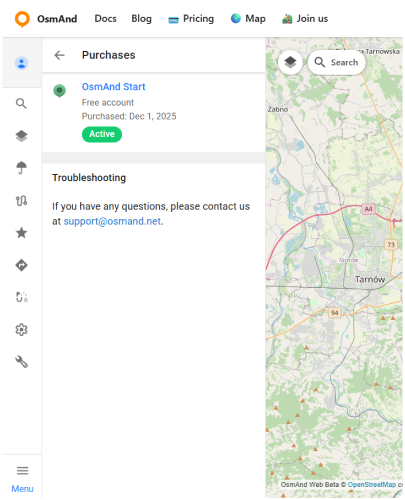
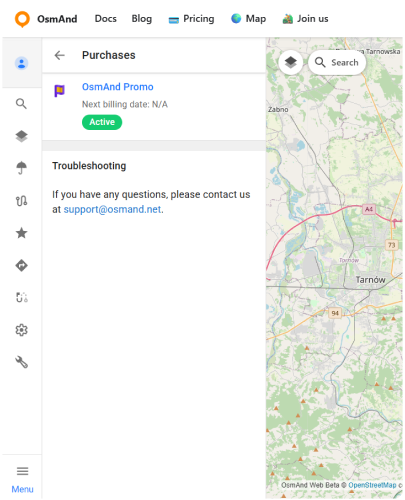
Web Map Portal supports several access levels: without login, with OsmAnd Start, and with OsmAnd Pro. The table below summarizes which features are available at each level so you can quickly see what you already have and what becomes available with an account or an upgrade. This overview is intended to help you decide whether you need an account at all and, if you do, which option best matches how you use OsmAnd.
| Feature | Available In |
|---|---|
| Navigation Route | Without Login |
| Route Planner | Without Login |
| Weather Overlays | Without Login |
| Settings | Without Login |
| Configure Map Menu (POIs, Favorites, Tracks) | OsmAnd Start or OsmAnd Pro |
| Configure Map Menu (Terrain) | OsmAnd Pro |
| OsmAnd Cloud Sync | OsmAnd Start or OsmAnd Pro |
| Web Search, Popular Places | OsmAnd Start or OsmAnd Pro |
| Tracks folders and Layer | OsmAnd Pro |
How to Start
To access the full features of the OsmAnd Web Portal, you need to log in with an OsmAnd Cloud account.
- If you already have an OsmAnd Pro subscription or want to create a free OsmAnd Start account, follow these steps:
- Go to the OsmAnd Map Portal.
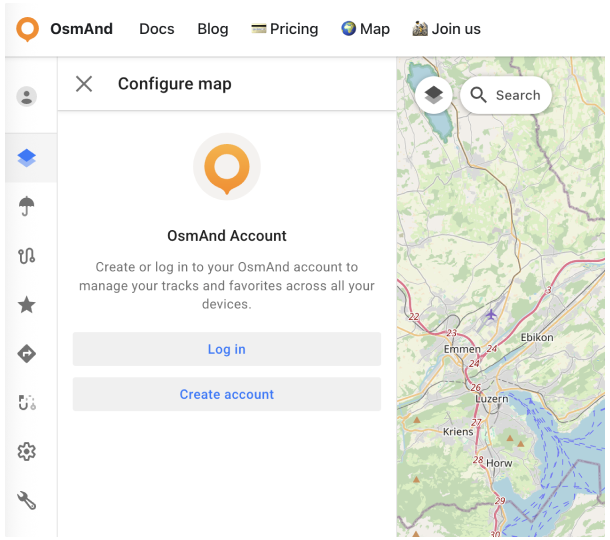
- Open the Account menu:
- Log in: Enter the email address linked to your Pro or Start subscription, or
- Create account: Register for a free OsmAnd Start account. For a detailed step-by-step guide to creating a new account, see the OsmAnd Account article.